How to Use ElevenLabs for YouTube: Easy Complete Guide (2026)
ElevenLabs can turn a text script into a natural-sounding voiceover in under a minute. For YouTube creators, that means no mic setup, no re-recording when you change a sentence, and consistent audio quality across every video — even when publishing five times a week. This ElevenLabs for YouTube guide covers the full workflow: account setup, voice settings by niche, how to handle long scripts without quality drift, and what YouTube’s 2026 AI disclosure rules mean for your channel.
Quick answer:
Create a free account → browse the voice library → paste your script in 300–500 word chunks → download the MP3 → sync with your video. The free plan gives ~10 minutes of audio per month — enough to test the full workflow before committing to a paid plan. Note: the free plan has no commercial license, so you need at least Starter ($6/mo) to monetize YouTube videos.
Why Use ElevenLabs for YouTube?
AI voiceover has become the backbone of the faceless YouTube channel model — channels that publish consistently without ever showing a face or recording a human voice. ElevenLabs is the most widely used tool for this because the voice quality is close enough to human that casual viewers won’t notice a difference. Beyond faceless channels, it’s useful for dubbing existing content in other languages, adding narration to screen recordings, or maintaining consistent audio quality when your recording environment changes. The core value proposition of ElevenLabs for YouTube is simple: you write the script, ElevenLabs reads it.
Step 1 — Create Your Account and Choose a Voice
Go to ElevenLabs and sign up with email — no credit card required for the free plan. Once you’re in, you have two main tools: Speech Synthesis (for quick single-clip generation) and Studio (for longer projects with chapter stitching). Start with Speech Synthesis to test voices, then move to Studio when you’re generating full scripts.
To pick a voice, open the Voice Library. You can filter by language, gender, age, accent, and use case (narration, social media, news, etc.). There are hundreds of pre-made voices. Click any to preview — but preview using your actual script text, not the default sample. The sample is optimized to sound good; your script might not behave the same way.
- Pre-made voices — available on all plans including free. Good starting point for most channels.
- Instant Voice Cloning — upload a 1-minute audio sample to create a voice that mimics a speaker. Available on Starter ($6/mo) and above. Works well for cloning your own voice for a consistent channel sound.
- Professional Voice Cloning — requires 30+ minutes of clean audio. Significantly higher quality than Instant. Available on Creator ($22/mo) and above.
Step 2 — Voice Settings for Your YouTube Niche
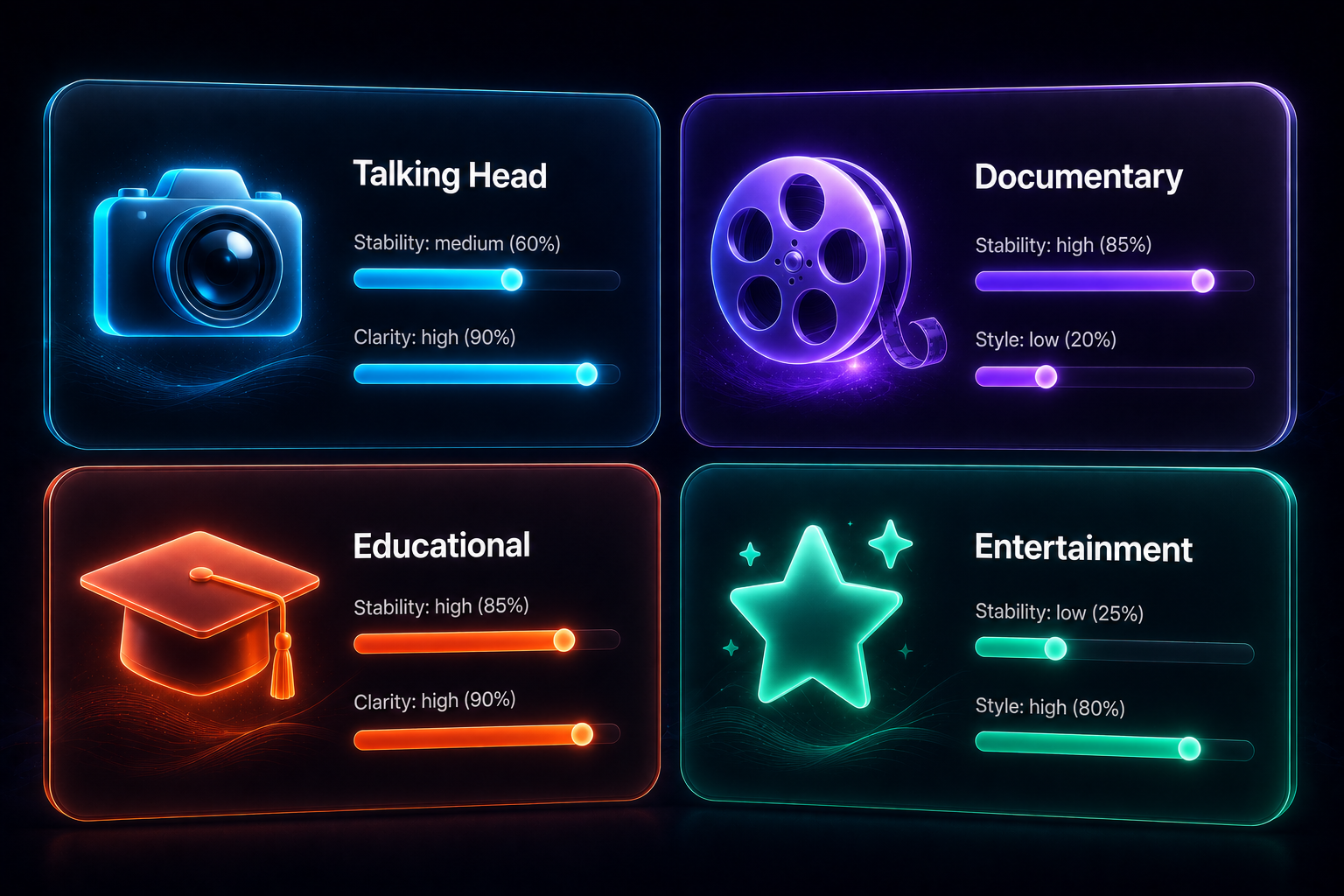
ElevenLabs has four main voice settings: Stability, Clarity, Style, and Speaker Boost. The defaults are fine for basic use, but tuning them to your content type gives noticeably better results. Here’s what works across the most common YouTube styles:
| YouTube Style | Stability | Clarity | Style | Speaker Boost |
|---|---|---|---|---|
| Commentary / talking head | 50% | 85% | 20% | On |
| Documentary / narration | 75% | 80% | 10% | On |
| Educational / tutorial | 70% | 90% | 15% | On |
| Entertainment / storytelling | 40% | 75% | 45% | Off |
| ASMR / calm narration | 80% | 85% | 5% | On |
Stability controls how consistent the voice sounds across sentences. Higher stability = more predictable but more monotone. Lower stability = more natural variation but can cause noticeable tone shifts between chunks. Clarity controls how closely the output matches the original voice model — keep it above 75% to avoid a muffled or warped sound. Style adds expressive exaggeration — great for entertainment but risky for educational content where measured delivery matters. Speaker Boost sharpens similarity to the voice model’s training — turn it off only if you notice audio artifacts like clipping or distortion.
Step 3 — How to Generate Voice for Long Scripts
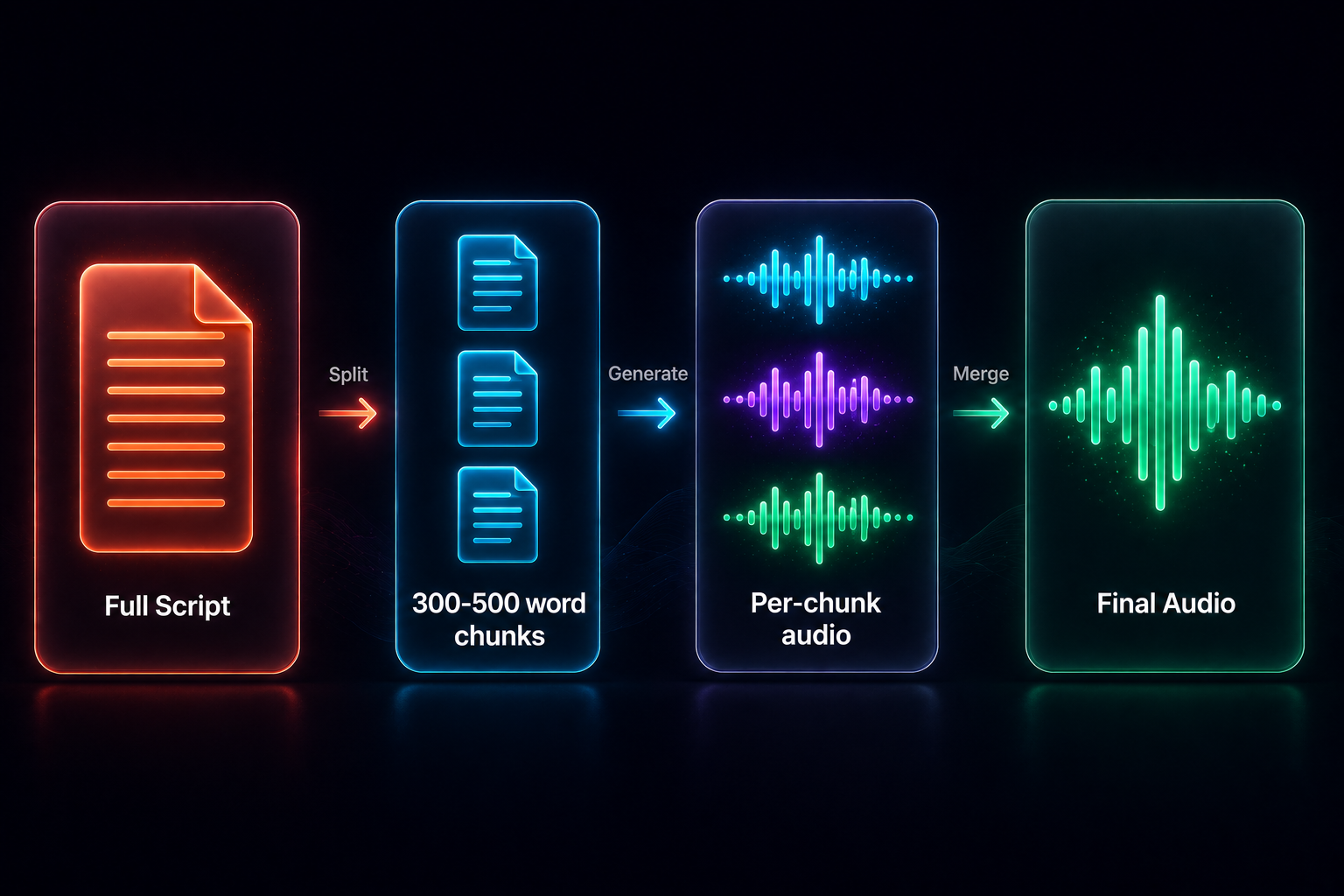
The most common mistake new users make is pasting a full 2,000-word script into the text field at once. Quality degrades toward the end of long generations — pacing slows, tone flattens, and transitions sound unnatural. The fix is chunking your script before generating.
The chunk workflow:
- Split your script into sections of 300–500 words. A natural split is at scene transitions or wherever a new H2 would appear in an article.
- Generate each chunk separately and name the file by order:
chunk_01.mp3,chunk_02.mp3, etc. - Use the same voice and identical settings for every chunk — adjusting settings between chunks causes noticeable tone shifts in the final video.
- Import all chunks into your video editor (Premiere, DaVinci Resolve, CapCut) and arrange them in order.
- At each join between chunks, listen carefully and add a 0.1–0.2 second crossfade if there’s an audible gap or tonal shift.
ElevenLabs Studio is the built-in solution for long-form content. You can paste an entire script into a Studio project, and ElevenLabs automatically segments it into chapters, generates each chapter individually, then stitches the audio. It’s cleaner than manual chunking and tracks character usage per chapter so you can see exactly where your credits go. Studio is available on all plans — free accounts get 3 projects, Starter gets 20.
Step 4 — YouTube AI Disclosure: What You Must Do in 2026
Since early 2024 — and enforced more strictly from May 2026 — YouTube requires creators to disclose when they use AI to generate or meaningfully alter audio or video content. An ElevenLabs voiceover qualifies as synthetic audio and requires disclosure on every video where it’s used.
The process takes about 3 seconds during upload:
- Open YouTube Studio and start your upload as normal.
- In the Details step, scroll to the Attributes section.
- Under “AI use,” select Yes.
- Continue through the rest of the upload process normally.
YouTube adds a label to the video — for voiceover-only AI use (non-photorealistic), the label appears in the expanded description. For videos with AI-generated faces or realistic video content, the label appears directly below the player or as an overlay on Shorts.
One important nuance: if you write your own script and a human reads it (even using an AI for script assistance), no disclosure is needed. AI-written scripts read by humans, AI color grading, and AI-generated background music are all exempt. The disclosure requirement is specifically for the audio or video content that viewers see and hear — not behind-the-scenes production tools.
Step 5 — Add Your Voiceover to Your Video
Download your generated audio as MP3 or WAV from ElevenLabs and import it into your video editor. A few things to get right for YouTube specifically:
- Build your edit around the audio, not the other way around. Drop the voiceover track first, then place your visuals to match it. ElevenLabs audio has no natural breathing pauses, so add 0.5–1 second gaps at paragraph breaks manually before editing visuals in.
- Normalize to –14 LUFS. Export audio from ElevenLabs at full quality, then normalize in your editor before rendering. YouTube applies loudness normalization to all uploads — loud peaks get pulled down and can cause pumping or distortion on quieter passages.
- Enable auto-captions. YouTube’s auto-caption system performs well on AI voiceover — the clarity and consistency of ElevenLabs output actually gives higher caption accuracy than average recorded speech. Captions improve accessibility and are a light ranking signal, so always leave them on.
How to Make Money with ElevenLabs on YouTube
ElevenLabs makes several YouTube income models more accessible for solo creators who don’t want to be on camera or record audio themselves.
Faceless YouTube channels at scale
The most common use case: a channel that publishes documentary-style or educational videos without a human host. AI voice handles narration, stock footage or screen recordings handle visuals, and a simple editing template handles the rest. Channels using this model typically aim for 3–5 videos per week. At $22/month (Creator plan, ~121 minutes of audio), that’s enough for roughly 20–25 standard YouTube videos per month. At $2–5 CPM with 100k+ monthly views, the math on tool costs is favorable quickly.
YouTube dubbing and multi-language expansion
ElevenLabs supports 32+ languages. For creators who already have performing English content, duplicating the channel in Spanish, Hindi, or Portuguese with an AI-dubbed voiceover can multiply view counts with minimal extra production. The Dubbing Studio feature automatically syncs translated audio to the original video’s timing. It’s available on the Starter plan ($6/mo) and above.
Selling voiceover production as a service
Fiverr and Upwork have active markets for “YouTube video voiceover” at $20–$80 per video. On Creator ($22/mo, ~121 minutes), you can produce 10+ client videos per month — the gross revenue exceeds the tool cost by a significant margin. The main requirement here is transparency: many clients are now specifically requesting AI voice because it’s faster to produce and easier to revise. Be upfront about the workflow and you’re rarely at a disadvantage.
YouTube automation and multi-channel management
Some creators run 3–5 channels simultaneously using AI for scripts, voice, and thumbnails. ElevenLabs’ API (available on Pro at $99/mo, with 44.1kHz PCM output) lets you automate the voice generation step — pipe scripts directly through the API and receive audio files in bulk without any manual copy-paste. At that scale, the Pro plan pays for itself within a few AdSense payouts.
ElevenLabs Pricing for YouTube Creators
Here’s what each plan actually gives you in terms of YouTube video production capacity:
| Plan | Price | Audio / month | YouTube notes |
|---|---|---|---|
| Free | $0 | ~10 min | No commercial license — cannot monetize videos made with free-plan audio |
| Starter | $6/mo | ~30 min | Commercial license + Instant Voice Cloning + Dubbing Studio. Good for 2–4 videos/month. |
| Creator | $22/mo | ~121 min | Professional Voice Cloning. Handles 20+ videos/month. First month 50% off ($11). |
| Pro | $99/mo | ~600 min | API access, 44.1kHz PCM audio, 192kbps. Built for multi-channel automation. |
| Scale | $299/mo | ~1,800 min | 3 workspace seats + 3 Professional Voice Clones. For agencies managing multiple channels. |
Prices verified June 2026 — confirm at elevenlabs.io/pricing before subscribing. Unused credits roll over for up to two billing cycles on paid plans.
For a full plan breakdown: ElevenLabs Pricing 2026: Which Plan Is Worth It? →
ElevenLabs — free tier available
10,000 credits/month on the free plan. Commercial license from $6/mo. No credit card required to start.
Limitations to Know Before You Start
- Free plan has no commercial license. This is the biggest gotcha for YouTube creators: if your channel earns money through AdSense, memberships, or brand deals, you cannot legally use audio generated on the free plan in your videos. You need Starter ($6/mo) at minimum.
- ~10 minutes of audio per month on free. Sounds reasonable until you realize a 1,000-word script burns most of the free monthly allowance. One mid-length YouTube video is essentially the entire free tier.
- Quality drift on long scripts without chunking. Generating a 2,000-word script in a single pass will produce noticeably degraded audio in the second half — flatter pacing, less natural delivery. This affects all plans. The fix is chunking or using Studio Projects.
- No free regenerations on the free plan. Paid plans include a limited number of free regenerations when an output is unsatisfactory. On the free plan, every generation costs credits — including the ones you’re not happy with.
- YouTube’s auto-detection can label you even if you skip disclosure. As of May 2026, YouTube proactively labels AI voiceover even when creators don’t complete the disclosure step. The label alone is fine — but being caught skipping disclosure repeatedly triggers the penalty system.
Is ElevenLabs Worth It for YouTube?
For faceless YouTube channels and anyone publishing more than a couple of videos per month, ElevenLabs for YouTube is one of the most practical tools available. The voice quality is good enough for audience retention — it’s not a novelty that viewers will detect and click away from. At $6/month for a commercial license and 30 minutes of audio, the barrier to start is genuinely low. The disclosure requirement is real, but it takes seconds and has no downside — the label itself doesn’t hurt your channel’s performance.
Where it doesn’t make sense: if you’re an on-camera creator whose voice is part of your personal brand, AI narration won’t add value. And if you’re purely on the free plan with no intention of upgrading, be aware you’re limited to testing only — you cannot legally monetize videos with free-plan audio.
✗ Look elsewhere if: Your personal voice is a core part of your brand, you only need 1–2 videos per month (the free tier might suffice just for testing), or you need more than 1,800 minutes monthly at scale (API custom pricing would be more cost-effective).
ElevenLabs — start for free
Free tier: 10,000 credits/month. No credit card required. Upgrade when you’re ready.
FAQ
Does YouTube allow AI-generated voiceovers?
Yes. YouTube allows AI voiceovers — including ElevenLabs for YouTube narration — as long as you disclose them during the upload process via the Attributes → AI use toggle in YouTube Studio. The disclosure adds a label to the video but does not affect monetization eligibility or search ranking. What is penalized is consistently failing to disclose — not the use of AI itself.
Do I need to disclose ElevenLabs voice on YouTube?
Yes. A fully AI-generated voiceover is considered synthetic audio under YouTube’s content policy (updated May 2026). When uploading, navigate to Attributes → AI use → Yes. It takes 3 seconds and protects your channel from the three-strike penalty system for non-disclosure: warning, then 90-day monetization suspension, then removal from the YouTube Partner Program.
Can I use ElevenLabs free for YouTube monetization?
No — ElevenLabs for YouTube on the free plan does not include a commercial license. If your YouTube channel earns money through AdSense, memberships, or brand deals, you need the Starter plan ($6/mo) or above to legally use ElevenLabs audio. The free plan is for testing the tool and finding a voice before committing.
How many minutes of audio does ElevenLabs free give per month?
The free plan includes 10,000 characters per month, which is approximately 7–10 minutes of generated audio depending on script complexity and speaking pace. The Starter plan ($6/mo) gives 30,000 characters (~30 minutes), and Creator ($22/mo) gives 121,000 characters (~121 minutes).
What’s the best ElevenLabs voice for YouTube?
There’s no universal answer — it depends on your niche and audience. For documentary or educational channels, look for voices tagged “narration” with a neutral accent and set Stability at 70–75%. For commentary or entertainment, voices tagged “casual” or “conversational” with lower Stability (40–50%) tend to sound more natural and engaging. Test 5–10 ElevenLabs for YouTube voices with your actual script opening line before committing to one for a full channel.
Will an ElevenLabs voiceover get my video demonetized?
No. As of 2026, YouTube does not demonetize videos based on an AI voice label alone. YouTube’s monetization policy targets fully automated content with no human creative input — not content where a creator writes scripts, designs visuals, and edits videos but uses AI for narration. Disclose the AI use, add original value to your content, and you’re within the rules.
ElevenLabs — start for free
Free tier: 10,000 credits/month. No credit card required. Upgrade when you’re ready.
Free Newsletter
Stay ahead on AI voice tools — no spam, ever.
Read next